
Team Features
Lody has supported team collaboration from day one. You can share agent configs and full conversation context with your team. More team capabilities are planned, including docs, skill management, member mentions, and task management.
Invite Members
Go to Settings -> Account -> Members, then click Invite Member. Enter the member's GitHub-linked email and choose their role before sending the invite.
After inviting, the member receives an email invitation. You can also copy the invite link and send it manually.
Change Member Permissions
Workspace owners and admins can change a member's permissions from the edit action on the right side of the member list.
Remove Members
Workspace owners and admins can remove members using the remove action on the right side of the member list.
View Other Members' Sessions
On the home page, click the filter button on the right side of the GitHub WorkTree list to switch between your own sessions and all team sessions. Avatars indicate who started each session.
Token Usage by Member
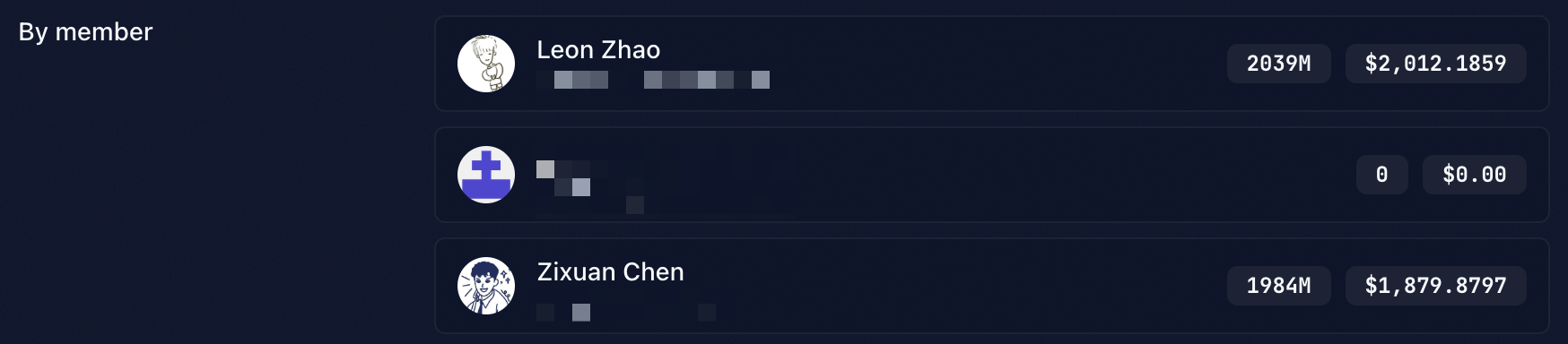
In Settings -> Stats, you can view total AI token usage and trend charts. Use By Member to review usage breakdowns by member.
Team Machine Visibility
Every machine you register is private by default. Joining someone else's workspace does not expose your own dev machine, and other members can neither see it in their machine list nor start sessions on it.
When you want teammates to reach a specific machine — for example a shared build server or a cloud worker — you can explicitly share it with the workspace.
Share a machine
- Go to Settings -> Machines.
- Find the machine under My Machines.
- Toggle Share machine on.
The machine then shows up under Team Machines for other members, and they can select it when creating a session. You can flip the toggle back off at any time; once un-shared, the machine disappears from other members' machine lists and their session sidebars stop receiving conversations running on it.
Only the owner of a machine can change its sharing state.
What "shared" means
- List visibility: shared machines appear in the
Team Machinessection of every member's machine settings. Un-shared machines stay under the owner'sMy Machinesonly. - Session reachability: sessions can only be created on machines the creator has access to — their own machines, plus any currently shared team machines.
- Conversation sidebar: sessions running on an un-shared machine do not sync into other members' sidebars.
Joining a workspace and granting access to your machines are fully decoupled — you can invite teammates without worrying that your personal laptop becomes a shared worker.